Views
A view is a panel you build from blocks — calendars, lists, toolbars — and open in a sidebar or a tab. The strip of links a journal draws inside its own notes is a navigation block, and the code blocks you type into notes yourself are in Code blocks.
| You want to… | Go to |
|---|---|
| Change the Calendar you start with | The Calendar view you start with |
| Open a view somewhere else, or on startup | A view's settings |
| Pick a date without opening its note | The view's date |
| Hide weekends or move week numbers | Month calendar and Week calendar |
| List the notes created on a day | Notes by date |
| Add buttons | Toolbar |
| Put links to other periods inside notes instead | Navigation blocks |
The Calendar view you start with
A new vault gets one view, Calendar, in the right sidebar. It opens on startup and has no ribbon button — run Open Calendar from the command palette, or turn on Show in ribbon. Every view gets an Open view command the same way. It is built from:
- a toolbar with the shelf selector, a Pick date button and a Current button;
- a toolbar with previous and next year and month buttons around period buttons for the month, quarter and year;
- a month calendar;
- a divider;
- a custom intervals list for the selected month.
Edit it, or add views of your own, under Views on the main settings page.
A view's settings
Add a view creates one, and Configure opens its page. The page's heading is the view's name, with Rename view; below it:
- Icon — shown in the view's tab header and in the ribbon.
- Default shelf — the shelf the view starts on when it opens. See Shelves.
- Show in ribbon — adds a ribbon button that opens the view.
- Open on startup — opens this view whenever you open the vault, separate from the startup note setting on the main settings page.
- Remember last viewed date — reopens the view on the date you last looked at, instead of today.
- Follow active note — moves the view to the date of each journal note you open. You can still step away from it.
- Open in — Left sidebar, Right sidebar or New tab.
- Blocks — the view's blocks, top to bottom. Add block adds one; each block can be configured, moved and removed.
Each view's row under Views also carries Clone view and Delete view. Clone view makes a copy named after it with (copy) appended, with the same icon, settings and blocks; rename it from its own page. Delete view asks first, then removes the view and its block configuration — your notes are not affected. A tab still showing a deleted view says so and can be closed.
Once a view is open, dragging it elsewhere in the workspace sticks: Obsidian restores it where you left it, whatever Open in says.
The view's date
Every view has a selected date. Calendars center on it and lists read from it. It starts on today, unless the view remembers its last date (Remember last viewed date) or follows a journal note that is already open when it opens (Follow active note), in which case it starts there. When both apply, the remembered date wins. It then moves when you open a journal note, with Follow active note on, and when you step with a toolbar button.
In a calendar grid, clicking a cell opens that period's note, creating it if needed. To change the selected date without opening anything, Shift+click a day. The keyboard works too: arrow keys move between cells, Home and End go to the start and end of a row, Enter or Space opens, and Shift+Enter or Shift+Space selects. Only day cells select; week numbers and month, quarter and year headings always open.
Blocks
Month calendar and Week calendar
A Month calendar block shows one or more month grids around the selected date; a Week calendar block shows the same span as week strips instead.
- Months before and Months after (Weeks before, Weeks after) — extra grids around the selected one.
- Days of the week — the days to show; turn weekends off to hide them.
- Week numbers — Use global default, Hidden, Before weekdays or After weekdays. The global default is Default week numbers on the main settings page.
- Show month/year heading — the heading above each grid.
Each cell shows whether a note exists and carries its decorations. Week numbers and headings open that week's, month's, quarter's or year's note in whichever journal of that length is in scope.
Calendar highlighting, on the main settings page, sets the colors for Today (today's date), Active (the note currently open) and Selected date — ring.
Example: Week numbers after the weekdays.
Notes by date
Lists notes created in the period containing the view's selected date — any note in the vault, not only journal notes.
- Period — Day, Week, Month, Quarter, Year or Decade.
- Sort notes by — Name, Last modified or Creation date, with Sort direction.
- Show period heading, Show period navigation.
A note's creation date comes from Creation date property on the main settings page — created, read with Creation date format YYYY-MM-DD — and a note without a valid value there falls back to its file creation time. File creation times change when a vault is synced or copied, so set the property if you rely on this list.
Example: A sidebar calendar with the day's notes.
Custom intervals
Lists the intervals of every custom interval journal in the view's shelf that fall inside a window around the selected date.
- Window — Selected day, Selected week, Selected month, Selected quarter or Selected year.
Each entry is drawn with its journal's Calendar interval lines and its decorations.
Notelets
Lists the notelets of the note you are reading, or of a window around the view's date.
- Window — as above; Selected day by default.
- Journals — leave all off to include every journal in the view's shelf.
- Notelet types — leave all off to include every type.
See Notelets.
Markdown template
Renders a template note as markdown, with journal variables processed. Pick a Template file. In it, {{date}} is the active note's date, or the view's selected date when no journal note is open, and {{journal_link(weekly)}} resolves to the vault path of another journal's note for the same date — wrap it in a link yourself: [[{{journal_link(weekly)}}|This week]]. See Variables.
Divider
A horizontal line between blocks.
Toolbar
A container for toolbar items such as buttons and the shelf selector. Add toolbar item adds:
Shelf selector — switches which shelf scopes the view's journals. See Shelves.
Period buttons — clickable badges for the current week, month, quarter and year periods. Pick them under Periods. They carry decorations.
Existing notes navigation — a button that jumps to the previous or next note that already exists. Notes to step through and Direction (Previous or Next).
Button — one of three presets:
- Pick date — opens a date picker to jump to any note.
- Open note — jumps to the current period's note.
- Navigate by step — steps forward or back by a fixed interval.
Each has a Label and Tooltip.
Spacer — a flexible gap that pushes neighboring items apart.
Examples
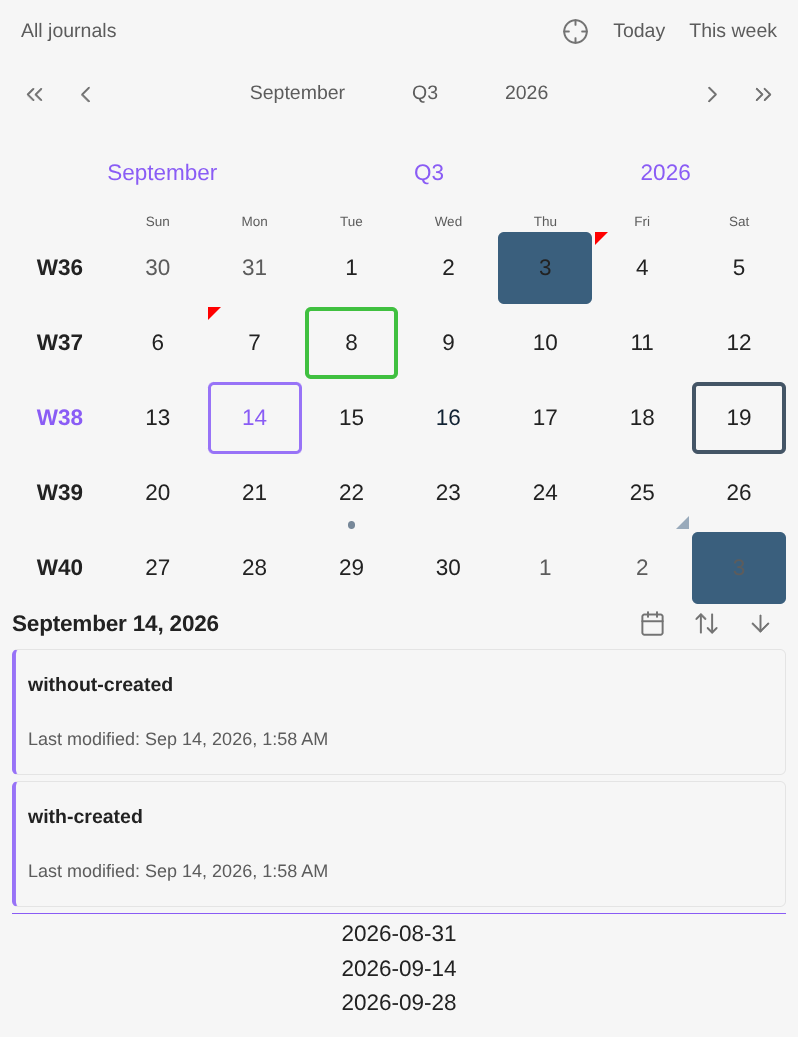
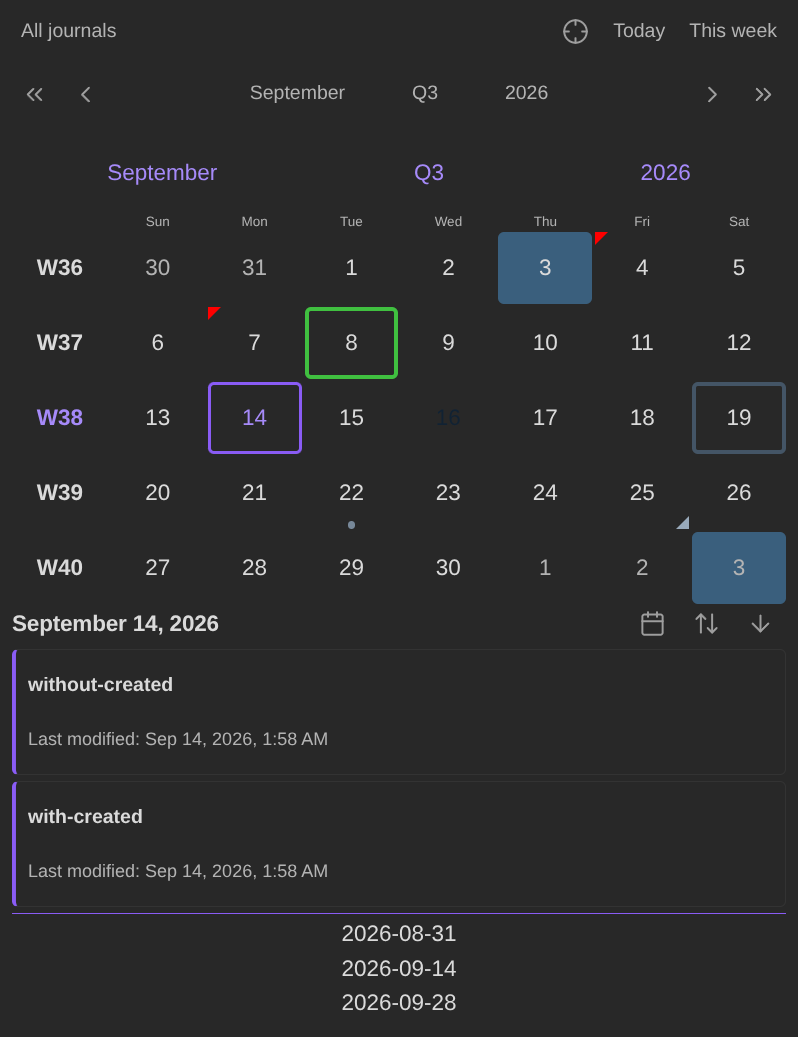
A sidebar calendar with the day's notes
A view in the right sidebar built from a toolbar with the shelf selector, Today and This week buttons; a toolbar of previous and next buttons around period buttons; a month calendar; a Notes by date block — Period Day, Sort notes by Last modified, Sort directionDescending; and a custom intervals list. Three notes outside any journal, looked at on 14 September 2026:
| Note | created | Listed |
|---|---|---|
Inbox/with-created.md | 2026-09-14 | ✓ |
Inbox/without-created.md | none — its file was created on the 14th | ✓ |
Inbox/different-day.md | 2026-09-02 | — |
The list shows without-created, then with-created, the last modified first.
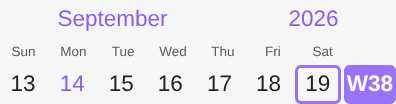
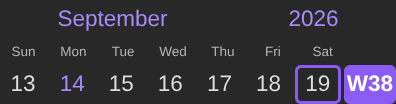
Week numbers after the weekdays
A Week calendar block with Week numbers After weekdays. With the week's note open, its week number carries the Active highlight at the end of the row: