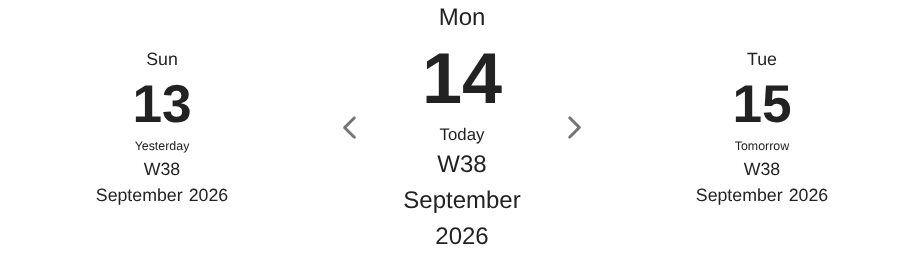
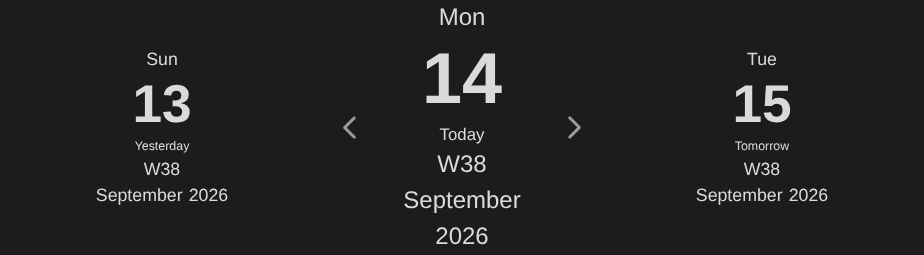
Navigation blocks
A navigation block is the strip of links a journal draws in its own notes — the note's period, the previous and next ones, and the week, month or year around it — through the journal-nav code block. What it shows is set in the Navigation block section of the journal's settings page. Put the code block in the journal's template and every note gets it:
```journal-nav

```
The block reads the journal and date from the note it sits in, so it works only in a note connected to a journal. An empty strip usually means the note is not connected, or the journal's navigation block has no lines — Use defaults for … puts them back. See Troubleshooting. The code block's own option is in Code blocks.
Lines and segments
The block is a stack of lines, and each line is one or more segments side by side. Every journal starts with lines suited to its period; Use defaults for daily notes (weekly, monthly…) puts them back. Add line and Add segment build your own, and you rearrange them by dragging in the preview.
The defaults put one segment on each line. The period's own line comes first, large and bold, and opens the note's own period; the lines for longer periods open those periods' notes. Shown here for 14 September 2026:
| Journal | Lines, top to bottom |
|---|---|
| daily | weekday Mon · day 14 · relative date Today · week W38 · month September · year 2026 |
| weekly | week W38 · relative date · month · year |
| monthly | month September · relative date · year |
| quarterly | quarter Q3 · relative date · year |
| yearly | year 2026 · relative date |
| custom interval | name and number, such as Sprint 4 · start date · to · end date |
Each segment has:
- Template — its text, with variables:
{{date:dddd}},Week {{date:w}}. - Font size — a multiplier on the regular font size: 1 means the same size as regular text — and Text style (Bold, Italic), plus text and background colors.
- Link — what clicking it opens:
- None — nothing;
- Self — the note's own period;
- Journal — another journal's note for the same date, picked from the journals on the same shelf — see Shelves;
- Day, Week, Month, Quarter, Year — the note for the day, week… containing the date, from the journal of that length on the same shelf, or from any journal when this one is on no shelf.
- Link date — shifts the date this link opens, using the same syntax as templates:
+1q,-1y,<startOf=month>. - Add decorations — paint the segment with decorations. A segment linking to another period or journal uses the decorations of the note it opens. A segment with no link, or linking to its own period unshifted, uses the decorations of every journal of this journal's length on the same shelf.
Clicking a segment opens its note, creating it if it does not exist.
Examples: Week and month lines in a daily note, Month and year on one line.
Block settings
- Previous and next arrows — Step to the adjacent period or Jump to the nearest existing note: stepping always moves one period, creating that note if it's missing; jumping skips periods that have no note, and never creates one. Clicking a segment always creates its note, whichever you choose.
- Show previous and next periods — Desktop and mobile, Desktop only, Mobile only or Never. Where they are not shown, the block draws only the current period and its arrows. Desktop only keeps the neighbors on a computer and leaves a phone with the current period alone; tablets count as mobile. A single note can override it with
adjacent: true,adjacent: false,adjacent: desktoporadjacent: mobilein the code block. - Decorate whole block — paint the whole block with the journal's own decorations for the note's period.
When the previous, current and next columns no longer fit side by side, they stack, one per row. That depends on what they hold, not on the device: the previous and next columns shrink on a narrow pane, so a day block stays on one row on a phone, while a decorated month block needs a much wider pane.
Calendar interval lines
Custom interval journals have a second set of lines, Calendar interval lines, edited the same way. They draw each interval in the Custom intervalsview block.
Examples
Week and month lines in a daily note
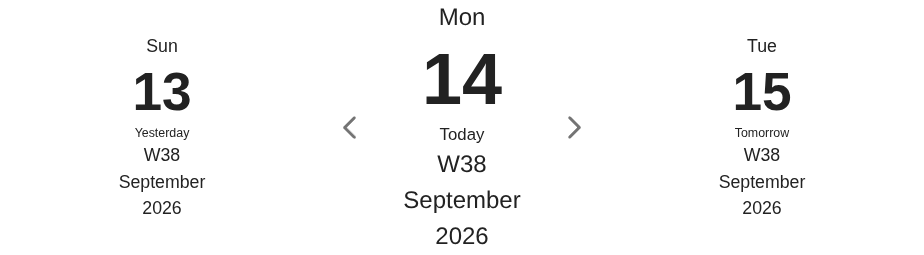
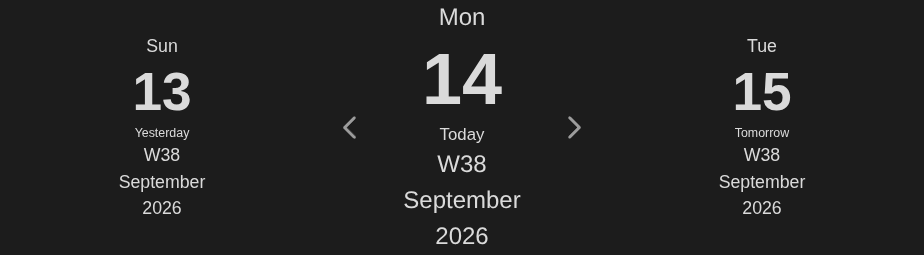
A daily journal with its default navigation lines — weekday, day, relative date, week, month, year — next to a weekly journal with Folder week and a monthly journal with Folder month. In the daily note for 14 September 2026, clicking W38 opens week/2026-W38.md, and clicking September opens month/2026-09.md.
Month and year on one line
The same daily journal, with its month and year lines merged into one line of two segments — {{date:MMMM}} linked to Month, and {{date:YYYY}} added beside it with Add segment, linked to Year — and a yearly journal with Folder year. In the daily note for 14 September 2026 the last line holds both segments: the previous and next columns read September 2026 side by side, and in the larger current column the two wrap when they do not fit. Clicking September opens month/2026-09.md, and clicking 2026 opens year/2026.md.