Shelves
A shelf groups journals that belong together, like work or personal.
A shelf is for keeping areas of your life apart, not for tying period lengths together. Daily, weekly and monthly notes are three separate journals, one per period length — a shelf is where you put the three of them together, so a work shelf can hold a work daily, weekly and monthly journal while a personal shelf holds its own.
What a shelf changes
- Calendar views can show one shelf at a time. See Scoping a view.
- Commands can target a shelf, so one command covers the journals on it. See Commands on a shelf.
- Decorations can be set on a shelf and apply to every journal on it. See Decorations.
- Navigation blocks and zoom look for the other period lengths among the journals on the same shelf. See Navigation blocks and zoom.
- Code blocks —
journals-homeandcalendar-timeline— default to the shelf of the note they sit in. See Code blocks.
A journal is on at most one shelf. When the journal something starts from is on no shelf, most things that scope to a shelf reach every journal instead — with one exception, under Navigation blocks and zoom.
Creating shelves
Shelves live under Journal shelves on the main settings page. Add shelf asks for a Shelf name, which must be unique. Each shelf in the list shows how many journals it holds; Configure opens its page and the delete button removes it.
A shelf's page has, from the top:
- its name, with Rename shelf;
- Journals — the journals on the shelf, with the same actions as the main journal list, and an add button. A journal created here is placed on this shelf;
- Commands — commands that target the shelf;
- Shelf decorations — decorations for every journal on the shelf.
Once you have a shelf, the journal list on the main settings page shows only Journals not on a shelf. Journals on a shelf are listed on that shelf's page.
Putting a journal on a shelf
On a journal's settings page, the Shelf section — shown once at least one shelf exists — says which shelf the journal is on, or Not on a shelf. Place on a shelf opens Place journal: pick a shelf, or Not on a shelf to take the journal off, and Save.
Placing a journal on a shelf takes it off the one it was on. Creating a journal from a shelf's page places it there, and cloning a journal puts the copy on the same shelf as the original.
Scoping a view
- Default shelf — the shelf the view starts on when it opens. Set it on the view's settings page; without one the view shows All journals.
- Shelf selector — a toolbar item that switches which shelf scopes the view's journals. Its button shows the current shelf, or All journals, and opens a menu with All journals and every shelf. It is hidden while you have no shelves.
The shelf you pick with the selector belongs to that view's pane and is remembered with Obsidian's workspace layout, so it survives a restart. Picking All journals sticks even on a view that has a default shelf. If the shelf you picked is renamed or deleted, the pane goes back to the view's default shelf.
Example: Work and home on one calendar.
Commands on a shelf
Add a command from the Commands section of a shelf's page. Besides what every command has, a shelf command asks for a Note type — day, week, month, quarter or year. Custom intervals cannot be targeted through a shelf. In the command palette it appears as Shelf: shelf: name.
When it runs, the command works on the shelf's journals of that note type. If the shelf has more than one, it asks which. See Commands for what each command type does.
Example: A command on a shelf.
Navigation blocks and zoom
A navigation block row that links to another period length — a month row in a daily note — opens that period's journal from the same shelf as the note's journal, and from every journal when that journal is on no shelf.
A row that links to a specific journal can only pick journals from the same shelf. A journal on no shelf has none to pick, so it cannot have such a row.
Zoom out and Zoom in move between the journals on the same shelf as the open note's journal, and between every journal when it is on no shelf. See Commands.
Code blocks
journals-home and calendar-timeline take a shelf option naming the shelf to show. Without it they use the shelf of the journal the note belongs to, and every journal when the note belongs to no journal or its journal is on no shelf.
shelf: workSee Code blocks for the rest of each block's options.
Renaming and deleting a shelf
Renaming a shelf updates the views whose Default shelf is that shelf and the commands that target it.
It does not change your notes. A shelf option in a code block still names the old shelf after a rename, and shows none of its journals until you edit it.
Deleting a shelf asks where its journals go:
- Move journals to — moves the shelf's journals to the selected shelf, or off any shelf when none is selected; notes are not affected. Choose a shelf, or None.
- With no other shelf to move to, the journals move off the shelf; notes are not affected.
The shelf's decorations and the commands that target it are deleted with it. A view whose Default shelf was the deleted shelf shows All journals.
Examples
Work and home on one calendar
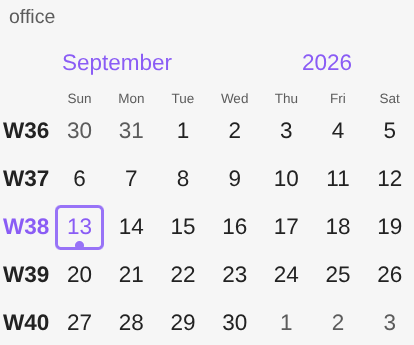
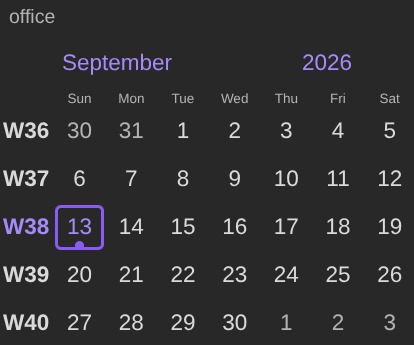
Two daily journals: work, with Folder work, on a shelf named office; and personal, with Folder personal, on a shelf named home. Each journal has one entry under Journal decorations — Check if note exists, styled as a small circle Shape at the bottom center — and today's note exists in both. The Calendar view has a toolbar with a Shelf selector above its month calendar.
- With All journals picked, today's cell carries two circles, one from each journal.
- Picking office leaves one:
personalis no longer in the view's scope. - Clicking today's cell now opens
work/2026-09-13.mdstraight away. With All journals picked the same click asks which journal, because two daily journals cover the date.
A command on a shelf
On the office shelf's page, add a command named Open today: Note type Daily note, When the command runs Open today's note, Context Today. The command palette lists it as "Shelf: office: Open today", and running it opens work/2026-09-13.md — the only daily journal on the shelf, so it does not ask which.