Decorations
A decoration changes how a date looks wherever it is drawn — in a calendar, a navigation block, an interval list, a toolbar's period buttons — when the conditions you set are met. Use one to see at a glance which days have a note, which ones you worked out, which sprints are still open.
A decoration is two lists: conditions, which decide whether it applies, and styles, which decide what it paints. When to decorate joins the conditions: Decorate when all conditions are fulfilled or Decorate when any condition is fulfilled. A decoration with no conditions never applies.
| You want to… | Go to |
|---|---|
| Decorate every calendar, or every journal on a shelf | Where decorations live |
| Color days by a property, a tag or the title | Frontmatter property, Title and tags |
| Show how much you wrote | Note size |
| Choose what a decoration paints | Styles |
| See more than three marks in a cell | Marks shown per position |
| Find out why a date looks the way it does | Finding out why |
Where decorations live
| Section | Found on | Applies to | Conditions |
|---|---|---|---|
| Calendar decorations | the main settings page | day cells in every calendar, whatever journals are shown | date and weekday only |
| Shelf decorations | a shelf's page | day cells while this shelf is shown, whatever journals it holds | date and weekday only |
| Journal decorations | a journal's settings page | the journal's own periods | all of them, by period length |
A calendar showing All journals draws every shelf's decorations. Calendar decorations are the vault-wide layer, and the rest of this page calls them vault-wide.
A new journal already marks the periods that have a note: it starts with one journal decoration, Check if note exists, drawn as a small circle in the theme's accent color at the bottom center — or, for a custom interval journal, as an accent-colored border on the left. Edit or delete it like any other.
Conditions
Which conditions a journal decoration offers depends on the journal's period:
| Condition | Daily | Weekly, monthly, quarterly, annually | Custom intervals |
|---|---|---|---|
| Check title, Check tags | ✓ | ✓ | ✓ |
| Check frontmatter property | ✓ | ✓ | ✓ |
| Check if note exists | ✓ | ✓ | ✓ |
| Check note size | ✓ | ✓ | ✓ |
| Check if note has open tasks, Check if all tasks are completed | ✓ | ✓ | ✓ |
| Check if a notelet exists | ✓ | ✓ | ✓ |
| Check date, Check weekday | ✓ | ||
| Check interval offset | ✓ |
A condition about a note — title, tags, a property, its size, its tasks — needs the note to exist. On a date with no note it does not match.
Title and tags
Match by contains, starts with or ends with, ignoring case. For tags, the # is optional on both sides: work matches #work and #workout with starts with.
Frontmatter property
Name the property, and the condition offers the comparisons that fit its type. The type comes from Obsidian's own property types, so set it in Obsidian first; a property Obsidian has not seen is treated as text.
| Property type | Comparisons |
|---|---|
| Text, list | exists, does not exist, equals, does not equal, contains, does not contain, starts with, ends with |
| Number | exists, does not exist, equals, does not equal, <, <=, >, >= |
| Date, date & time | exists, does not exist, on, not on, before, on or before, after, on or after |
| Checkbox | exists, does not exist, is true, is false |
- equals and does not equal on text are exact; the others ignore case. A list property matches when any of its items does.
- A note without the property matches does not equal, does not contain and, on a date, not on — there is no value to break them — and nothing else except does not exist.
- Date & time properties compare by the day; the time is ignored. A value that is there but is not a date matches only exists — every comparison fails, not on included.
Checkboxes. A ticked checkbox is is true, an unticked one is is false, and a note without the property at all is does not exist. A property added to a note but never ticked holds no value yet, so it matches exists but neither is true nor is false.
Example: A workout checkbox.
Note size
Unit — Words or Characters — compared with <, <=, > or >=. The count is the one Obsidian shows in its status bar: frontmatter is not counted, everything else is. Add two note-size conditions to one decoration to match a band, such as at least 250 and fewer than 1000 words.
Example: Word-count bands.
Tasks
Check if note has open tasks matches a note with at least one unticked task. Check if all tasks are completed matches a note whose tasks are all ticked, and not a note with no tasks.
Has notelet
Matches a period with at least one notelet. Pick Notelet types to count only those; pick none to count a notelet of any type.
Date and weekday
Check date takes a Day, a Month and a Year, each of which can be Any day, Any month or Any year — 25 December of any year, or every day of March 2026. Check weekday takes a set of Weekdays.
Interval offset
For custom intervals: Count from From start or From end, and a Day — for example, day 1 from the start matches the interval's first day, and day 3 from the end matches the third-from-last day. A decoration with an offset condition marks that day in calendars; the interval's other decorations mark the interval in interval lists.
Repeating a condition
Title, tag, property, date, offset and note-size conditions can be added more than once. Weekday, has note, the two task conditions and has notelet can appear once each: a second copy could not say anything the first does not.
Styles
Add style on the decoration's canvas:
- Background — click the cell to add one.
- Color — the date's text; click the number to set it.
- Border — click the outline to add one. Border mode is Linked (one border all round) or Per side, each side with a Width, a Style — Solid, Dashed, Dotted, Groove, Double — and a color.
- Shape — a square, circle or triangle in one of nine positions, sized relative to the font size: 1 means the same size as a letter.
- Icon — any Obsidian icon, in one of nine positions, sized the same way.
- Corner — a triangle in a corner; click a corner to add one.
Every color can be transparent, a theme color, or a custom color.
When several decorations apply
Decorations are applied vault-wide first, then the shelf's, then the journal's.
- Background, text color, each border side, each corner hold one value. The most specific decoration wins: a journal's background beats a shelf's, which beats a vault-wide one. A transparent color still counts, so a journal can clear what a shelf painted. A border side that is not shown does not count, so a decoration drawing only a left border leaves another decoration's top border in place.
- Shapes and icons never replace each other; they collect in their position.
Marks shown per position
Marks shown per position, on the main settings page, caps how many shapes and icons each of a cell's nine positions draws, collapsing the rest into a badge you can hover to see them all. 3 by default, or Unlimited. The badge reads +N and takes one of the places, so a cap of 3 shows two marks and +N. The marks kept are the most specific ones — the journal's before the shelf's, the shelf's before vault-wide. The cap changes only what is drawn, never what matched.
Example: A shelf color and a crowded cell.
Finding out why a date looks the way it does
- Match badge. Each decoration in a settings list says how often it matched recently: "Matched 3 of the last 90 days", or "Matched nothing in the last 26 weeks". The window is 90 days, 26 weeks, 12 months, 8 quarters, 5 years or 20 intervals, counted back from today — or forward, for a journal that has not started. A note-size decoration shows no count — working it out would mean reading every note in the window — but still says "No notes yet" when the window holds no notes at all.
- Explain decorations. Right-click a decorated cell — in a calendar, a navigation block, or a toolbar's period buttons — and choose Explain decorations. The Decoration breakdown lists, property by property, which decoration painted each background, border and mark, and which ones it overrode.
- Inspect a date. From any decorations section, Inspect a date takes a Date and a Shelf in view and shows everything decorating that date across all three sections, or says that nothing does.
If a decoration's settings can't be changed at all — fields that do not respond — another plugin may be interfering. See Troubleshooting.
Examples
A workout checkbox
Set workout to the Checkbox type in Obsidian, then give the daily journal two decorations:
| Decoration | Condition | Style |
|---|---|---|
| 1 | Check frontmatter property — workout is true | a green Background |
| 2 | Check frontmatter property — workout is false | a grey Background |
The note's workout | The day's cell |
|---|---|
true | green |
false | grey |
no workout property | not decorated |
added with Obsidian's Add property and never ticked — it writes workout: | not decorated |
Word-count bands
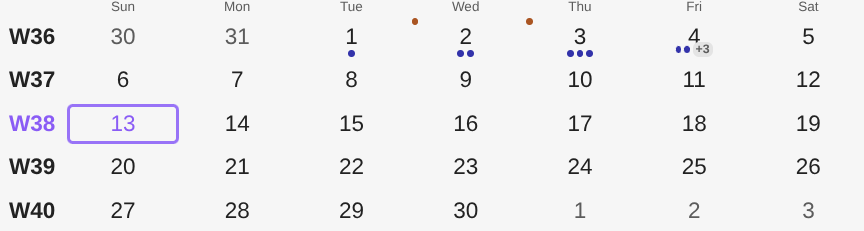
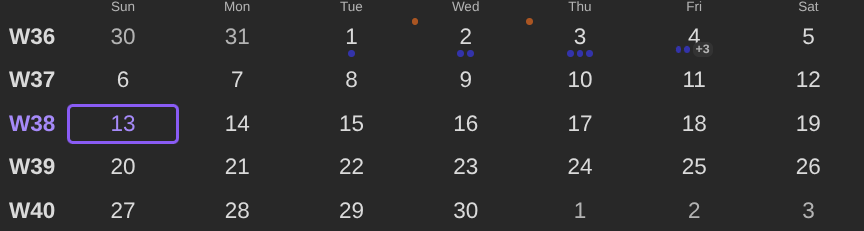
The five-decoration row of dots from Coming from Calendar, at the bottom center, and one more decoration with two note-size conditions — Words >= 250 and Words < 1000 — drawing a dot at the top left:
| Words | Row of dots, cap of 3 | Row of dots, Unlimited | Band dot |
|---|---|---|---|
| 100 | 1 | 1 | — |
| 600 | 2 | 2 | ✓ |
| 800 | 3 | 3 | ✓ |
| 1300 | 2 and +3 | 5 | — |
A shelf color and a crowded cell
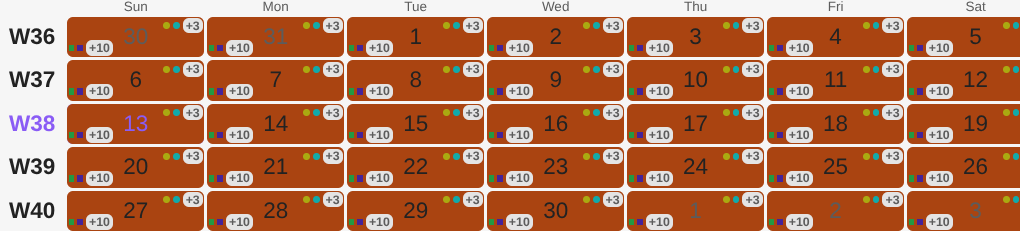
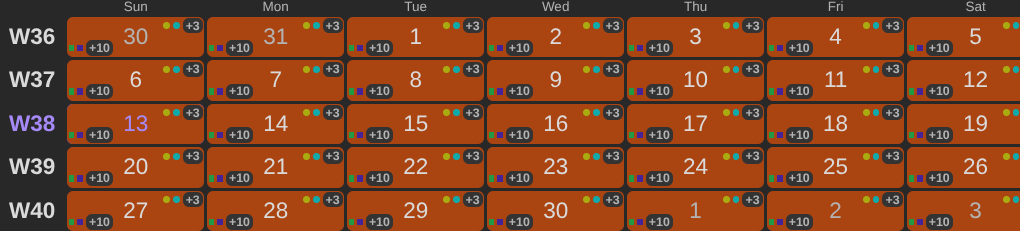
A daily journal on a shelf. The shelf has a decoration painting every day blue; the journal has one painting every day rust, and seventeen more drawing marks — five circles at the top right and twelve squares at the bottom left. With Marks shown per position at 3:
- every day is rust — the journal's background beats the shelf's;
- the top right shows two circles and
+3, the bottom left two squares and+10.