Code blocks
Journals draws four kinds of code block. Type one into any note — or into a journal's template, so every note gets it — and it renders in reading view and live preview.
```calendar-timeline
mode: month
```
A block's options go inside the fence, one per line as option: value. Each journal's settings has a Supported code blocks link that lists them with a live preview, and copies a block when you click it.
A wrong option does not break the block. An option name the block does not know is listed in a notice above the block, and a value it does not understand falls back to the default — so a block that looks right but ignores your option usually has a misspelled value. true and false must be written that way; yes, no, on and off are read as text.
Every block's container carries a class themes and CSS snippets can target: journal-nav-code-block, journal-timeline-code-block, journal-home-code-block, journal-notelets-code-block.
Navigation block — journal-nav
```journal-nav

```
Draws the journal's navigation block for the note it sits in — its lines, segments and arrows are set in the journal's settings, not here. It needs a note connected to a journal. calendar-nav and interval-nav are older names for the same block and still work.
| Option | Values | Default |
|---|---|---|
adjacent | true, false, desktop, mobile | the journal's Show previous and next periods |
adjacent: false shows only the current period and its arrows; adjacent: true shows the previous and next periods where the journal hides them. adjacent: desktop shows them on a computer and not on a phone or tablet, and adjacent: mobile the other way round.
```journal-nav
adjacent: false
```

Timeline — calendar-timeline
```calendar-timeline

```
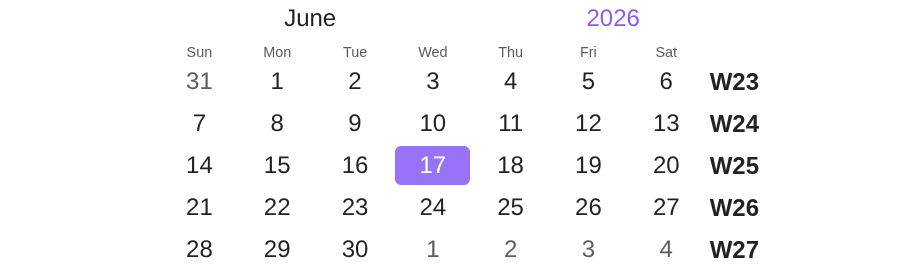
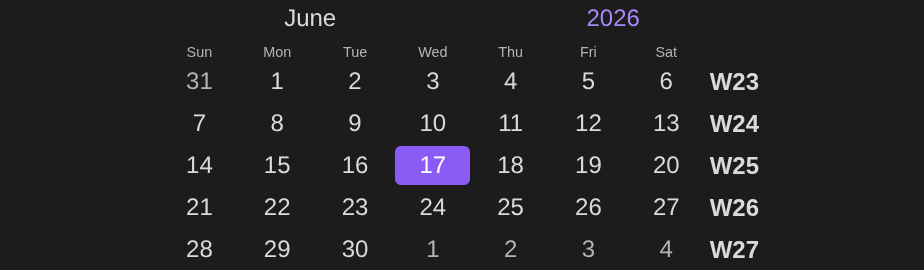
A calendar grid for the period around the note it sits in. Without mode, a daily or weekly note shows its week, a monthly note its month, a quarterly note its quarter and a yearly note its year. A custom interval note shows its week, and a note in no journal shows the current week.
| Option | Values | Default |
|---|---|---|
mode | week, month, quarter, calendar | from the note's journal, as above |
shelf | a shelf's name | the shelf of the note's journal, or all journals |
weeks | default, left, right, none | default — Default week numbers |
hiddenWeekdays | a list of day numbers, 0 Sunday to 6 Saturday | none hidden |
before | a number of extra periods above | 0; week and month modes only |
after | a number of extra periods below | 0; week and month modes only |
navigation | true, false | Default timeline navigation |
calendar shows the whole year as twelve months; quarter shows three.
The previous and next week alongside the current one:
```calendar-timeline
mode: week
before: 1
after: 1
```
A month without weekends:
```calendar-timeline
mode: month
hiddenWeekdays: [0, 6]
```
With navigation: true, arrows page through periods without opening or creating a note — a week at a time in week mode, a month in month, a quarter in quarter, a year in calendar. A reset control appears once you have moved, and the block returns to the note's own period whenever Obsidian redraws it. When the block shows a single grid — week or month with no before or after — the arrows sit beside the grid's own headings, which still open their notes.


Links to today's notes — journals-home
```journals-home

```
A row of links to the current notes: "Today", "This week" and so on. Useful on a dashboard note.
| Option | Values | Default |
|---|---|---|
show | a list of day, week, month, quarter, year, custom | [day] |
separator | text between links | " • " |
scale | a number; 2 makes the links twice as big | 1 |
shelf | a shelf's name | the shelf of the note's journal, or all journals |
- Each of
day…yearadds one link, shown when a journal of that length is in scope. With more than one such journal, clicking asks which. customadds one link per custom interval journal in scope, labelled with its current interval note's name.- A
shelfnaming a shelf that does not exist shows no links.
```journals-home
show:
  - day
  - week
  - month
  - custom
scale: 1.5
separator: " | "
shelf: work
```
In a vault with daily and weekly journals but no monthly one, show: [day, week, month] draws two links:


Notelets — journal-notelets
```journal-notelets

```
Lists the notelets of the period the note belongs to, grouped by type, with New notelet. It works in a period note and in a notelet alike. In a note connected to no journal it lists nothing and says so — see Troubleshooting.
| Option | Values | Default |
|---|---|---|
types | a list of notelet type names, or one name | every type of the journal |
```journal-notelets
types:
  - Meeting
  - Retro
```