Notelets
A journal normally keeps one note per period — one note for today, one for this sprint. A notelet is an extra note the same journal keeps for that period, alongside the period's own note: meeting notes on a day, a retro on a sprint, a reading log on a week. A period can hold any number of them.
Every notelet belongs to a notelet type, which decides where its notes go, what they are called and what goes into them; the journal decides which period a notelet belongs to. A type has no timeline or calendar of its own.
A notelet is recognized by its properties, not its path. The plugin writes the journal's name, the period's date and the type's name into each one, so a notelet you move or rename by hand stays connected.
Adding a notelet type
On a journal's settings page, Notelet types → Add notelet type asks for a Name, stored on each notelet — rename it here later to change it everywhere. It must be unique within the journal.
The type's own page has:
- Note name — what its notelets are called, using the journal's variables plus
{{notelet_index}}.{{journal_name}} {{notelet_index}}by default. - Folder — where they go. Empty by default, which is the vault root; set it, for example to
Daily/meetings. - Confirm creating notelets — shows a confirmation dialog before a notelet of this type is created. Off by default. This is the type's own setting; the journal's Confirm creating new notes never applies to notelets. A type that asks questions shows its question dialog instead.
- Number each notelet — numbers notelets within their period, starting again from 1 in every period. On by default. The number is stored under Property name,
journal-notelet-indexunless you change it, and is{{notelet_index}}in the name. - Templates — template notes for new notelets, chosen the way a journal chooses its own. See Templates.
- Questions — the type's own questions. Only the type's answers are available to its note name and folder; the journal's questions are not asked for a notelet.
- Commands — adding a type adds a Create type command; add more targeted at the type. See Commands.
Names that would repeat
Several notelets share one period, so a name with nothing that changes within a period would give them all the same name. {{notelet_index}}, a time variable such as {{time}}, or one of the type's questions keeps them apart. Without one, the settings page warns — "This name template has nothing that varies within a period, so every notelet after the first gets a number added to its file name." — and the plugin does exactly that, so nothing is overwritten.
Example: Meeting notes on a day.
Creating a notelet
- Run the type's Create type command, or any command targeted at the type. A notelet command always creates a new notelet — it never opens an existing one.
- New notelet in a notelets list: the Notelets view block, or a
journal-noteletscode block. - A link such as
obsidian://journals?journal=Daily¬elet=Meeting&date=today.
Each creates a notelet for the chosen period, numbered after the ones already there.
Example: A notelet from a link.
Listing notelets
A journal-notelets code block lists the notelets of the period the note it sits in belongs to — in a period note or in a notelet alike — grouped by type, with New notelet. In a note connected to no journal it lists nothing and says so.
```journal-notelets
types:
  - Meeting
```
types limits the list to types named as you named them. See Code blocks. The Notelets view block lists them in a view — see Views.
A notelet whose type was deleted is listed as type (missing type).
Adopting notes you already have
- Connect note to a journal offers the journal's notelet types under Connect as. See Connect note to a journal.
- Bulk add notelets of this type, next to the name on the type's page, connects a folder of notes as notelets, numbered in the order the folder is scanned. See Bulk add.
Renaming and deleting a type
Rename notelet type rewrites the type name on every notelet that carries it; the notes stay where they are.
Delete notelet type says how many notelets are connected and asks What to do with connected notelets:
- Keep notelets — notelets stay in your vault, unchanged, as orphaned notelets. They keep the old type's name, still list as (missing type), and the vault check reports them.
- Clear notelet type data — notelets stay in your vault, but all journal and notelet type properties are removed from their frontmatter.
- Delete notelets — every notelet of this type is deleted from your vault.
Deleting a type also takes it out of every Check if a notelet exists decoration condition that named it, and removes a condition — or a whole decoration — that named nothing else.
Cloning a journal offers Copy notelet types, on by default. See Journals.
Notelets elsewhere
- Check if a notelet exists paints periods that have one — see Decorations.
- A notelet counts as the active journal note for commands and for a view's Follow active note.
Examples
Meeting notes on a day
A daily journal (folder day, name {{date}}) with two notelet types:
| Type | Note name | Folder | Number each notelet |
|---|---|---|---|
| Meeting | {{date}} Meeting {{notelet_index}} | day/meetings | on |
| Retro | {{date}} Retro | day/retros | off |
and their commands Create Meeting and Create Retro.
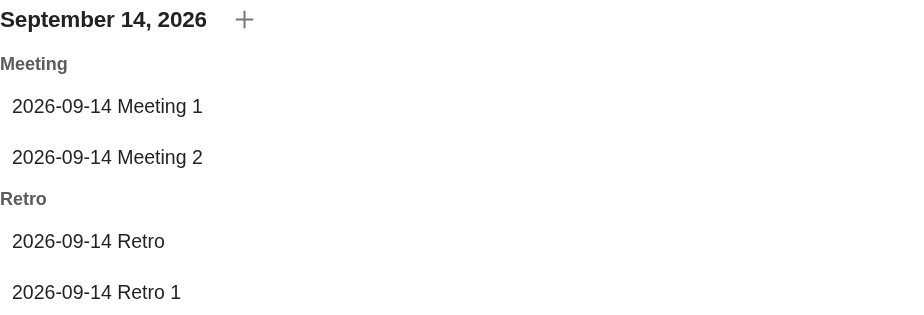
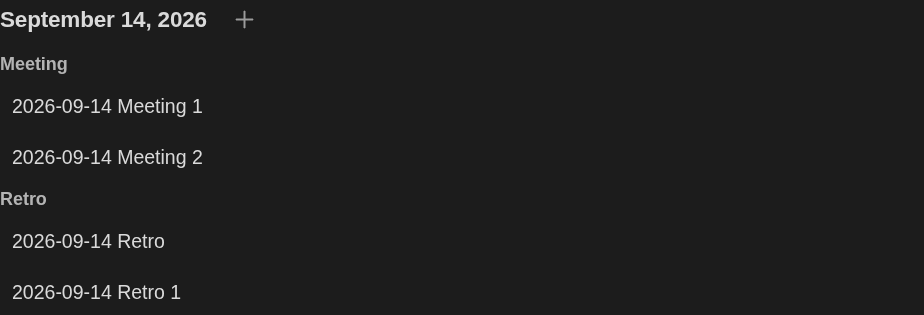
Running Create Meeting twice on 14 September 2026 creates day/meetings/2026-09-14 Meeting 1.md and day/meetings/2026-09-14 Meeting 2.md, with journal-notelet-index 1 and 2. Running Create Retro twice creates day/retros/2026-09-14 Retro.md, then day/retros/2026-09-14 Retro 1.md: its name has nothing that changes within the day, so the second gets a number.
A journal-notelets block in that day's note lists them by type:
A notelet from a link
After those two meetings, following obsidian://journals?journal=daily¬elet=Meeting creates day/meetings/2026-09-14 Meeting 3.md, with journal-notelet: Meeting and journal-notelet-index: 3.